















Global Data Coverage

Country Buildings Streets Cities Postalcodes Coordinates Updated
Afghanistan 11/10/2017
Åland 11/10/2017
Albania 16/10/2017
Algeria 11/10/2017
American Samoa 29/11/2017
Andorra 5/12/2017
Angola 17/10/2017
Anguilla 11/10/2017
Antigua and Barbuda 11/10/2017
Argentina 17/10/2017
Armenia 11/10/2017
Aruba 11/10/2017
Australia 3/10/2017
Austria 13/11/2017
Azerbaijan 11/10/2017
Bahamas 11/10/2017
Bahrain 17/10/2017
Bangladesh 11/10/2017
Barbados 11/10/2017
Belarus 11/10/2017
Belgium 16/10/2017
Belize 11/10/2017
Benin 11/10/2017
Bermuda 11/10/2017
Bhutan 11/10/2017
Bolivia 11/10/2017
Bonaire, Sint Eustatius and Saba 11/10/2017
Bosnia and Herzegovina 11/10/2017
Botswana 17/10/2017
Brazil 10/11/2017
British Indian Ocean Territory 11/10/2017
British Virgin Islands 12/10/2017
Brunei 24/10/2017
Bulgaria 11/10/2017
Burkina Faso 11/10/2017
Burma 11/10/2017
Burundi 11/10/2017
Cambodia 11/10/2017
Cameroon 11/10/2017
Canada 7/12/2017
Cape Verde 11/10/2017
Cayman Islands 11/10/2017
Central African Republic 11/10/2017
Chad 12/10/2017
Chile 17/10/2017
China 11/10/2017
Christmas Island 11/10/2017
Cocos (Keeling) Islands 11/10/2017
Colombia 17/10/2017
Comoros 11/10/2017
Congo 11/10/2017
Congo (Democratic Republic) 11/10/2017
Cook Islands 11/10/2017
Costa Rica 11/10/2017
Croatia 16/10/2017
Cuba 17/10/2017
Curaçao 11/10/2017
Cyprus 11/10/2017
Czechia 11/10/2017
Denmark 16/10/2017
Djibouti 11/10/2017
Dominica 11/10/2017
Dominican Republic 11/10/2017
East Timor 12/10/2017
Ecuador 11/10/2017
Egypt 17/10/2017
El Salvador 12/10/2017
Equatorial Guinea 11/10/2017
Eritrea 11/10/2017
Estonia 11/10/2017
Ethiopia 11/10/2017
Falkland Islands 11/10/2017
Faroe Islands 11/10/2017
Fiji 11/10/2017
Finland 16/10/2017
France 16/10/2017
French Guiana 11/10/2017
French Polynesia 11/10/2017
Gabon 11/10/2017
Gambia 11/10/2017
Georgia 11/10/2017
Germany 14/11/2017
Ghana 11/10/2017
Gibraltar 11/10/2017
Greece 16/10/2017
Greenland 11/10/2017
Grenada 11/10/2017
Guadeloupe 11/10/2017
Guam 29/11/2017
Guatemala 11/10/2017
Guernsey 8/12/2017
Guinea 11/10/2017
Guinea-Bissau 11/10/2017
Guyana 11/10/2017
Haiti 11/10/2017
Honduras 11/10/2017
Hong Kong 24/10/2017
Hungary 16/10/2017
Iceland 16/10/2017
India 5/07/2017
Indonesia 24/10/2017
Iran 11/10/2017
Iraq 11/10/2017
Ireland 16/10/2017
Isle of Man 8/12/2017
Israel 11/10/2017
Italy 17/10/2017
Ivory Coast 11/10/2017
Jamaica 11/10/2017
Japan 11/10/2017
Jersey 8/12/2017
Jordan 17/10/2017
Kazakhstan 11/10/2017
Kenya 11/10/2017
Kiribati 11/10/2017
Korea (North) 11/10/2017
Korea (South) 11/10/2017
Kuwait 17/10/2017
Kyrgyzstan 11/10/2017
Laos 11/10/2017
Latvia 17/10/2017
Lebanon 11/10/2017
Lesotho 11/10/2017
Liberia 11/10/2017
Libya 11/10/2017
Liechtenstein 11/10/2017
Lithuania 17/10/2017
Luxembourg 17/10/2017
Macao 24/10/2017
Macedonia 11/10/2017
Madagascar 11/10/2017
Malawi 17/10/2017
Malaysia 11/10/2017
Maldives 11/10/2017
Mali 11/10/2017
Malta 17/10/2017
Marshall Islands 29/11/2017
Martinique 11/10/2017
Mauritania 11/10/2017
Mauritius 17/10/2017
Mayotte 11/10/2017
Mexico 17/10/2017
Micronesia 29/11/2017
Moldova 11/10/2017
Monaco 11/10/2017
Mongolia 11/10/2017
Montenegro 17/10/2017
Montserrat 11/10/2017
Morocco 17/10/2017
Mozambique 17/10/2017
Namibia 17/10/2017
Nauru 11/10/2017
Nepal 11/10/2017
Netherlands 17/10/2017
New Caledonia 11/10/2017
New Zealand 25/09/2017
Nicaragua 11/10/2017
Niger 11/10/2017
Nigeria 11/10/2017
Norfolk Island 11/10/2017
Northern Mariana Islands 29/11/2017
Norway 17/10/2017
Oman 17/10/2017
Pakistan 11/10/2017
Palau 29/11/2017
Panama 11/10/2017
Papua New Guinea 11/10/2017
Paraguay 11/10/2017
Peru 11/10/2017
Philippines 11/10/2017
Pitcairn 11/10/2017
Poland 17/10/2017
Portugal 17/10/2017
Puerto Rico 29/11/2017
Qatar 17/10/2017
Réunion 11/10/2017
Romania 17/10/2017
Russia 17/10/2017
Rwanda 12/10/2017
Saint Martin (French) 11/10/2017
Samoa 12/10/2017
San Marino 17/10/2017
Sao Tome and Principe 12/10/2017
Saudi Arabia 17/10/2017
Senegal 12/10/2017
Serbia 17/10/2017
Seychelles 12/10/2017
Sierra Leone 12/10/2017
Singapore 24/10/2017
Sint Maarten (Dutch) 12/10/2017
Slovakia 17/10/2017
Slovenia 17/10/2017
Solomon Islands 12/10/2017
Somalia 12/10/2017
South Africa 17/10/2017
South Georgia and the South Sandwich Islands 12/10/2017
South Sudan 12/10/2017
Spain 16/10/2017
Sri Lanka 11/10/2017
St Barthélemy 11/10/2017
St Helena, Ascension and Tristan da Cunha 12/10/2017
St Kitts and Nevis 11/10/2017
St Lucia 11/10/2017
St Pierre and Miquelon 12/10/2017
St Vincent 12/10/2017
Sudan 12/10/2017
Suriname 12/10/2017
Svalbard and Jan Mayen 12/10/2017
Swaziland 17/10/2017
Sweden 17/10/2017
Switzerland 16/10/2017
Syria 12/10/2017
Taiwan 24/10/2017
Tajikistan 12/10/2017
Tanzania 12/10/2017
Thailand 24/10/2017
Togo 12/10/2017
Tonga 12/10/2017
Trinidad and Tobago 12/10/2017
Tunisia 17/10/2017
Turkey 17/10/2017
Turkmenistan 12/10/2017
Turks and Caicos Islands 12/10/2017
Tuvalu 12/10/2017
Uganda 17/10/2017
Ukraine 17/10/2017
United Arab Emirates 17/11/2017
United Kingdom 8/12/2017
United States 29/11/2017
United States Virgin Islands 29/11/2017
Uruguay 12/10/2017
Uzbekistan 12/10/2017
Vanuatu 12/10/2017
Vatican City 12/10/2017
Venezuela 12/10/2017
Vietnam 24/10/2017
Wallis and Futuna 12/10/2017
Yemen 17/10/2017
Zambia 17/10/2017
Zimbabwe 17/10/2017

Field Types Available

Field name Description
Line1-5 The specific line number of the returned address
Town The Town of the returned address
County The County of the returned address
Postcode The Postcode of the returned address
Country The ISO 3166 Country name for the returned address
Company Returns the full company name where registered
Search Input Search bar where all the address validation magic happens
Building Name Name of the building for the returned address
Building Number Number of the building for the returned address
Sub Building The Flat or Unit number within the building. i.e. Flat 1
Street The Street Name of the returned address
District The locality within the Town or City
County Name The name of the County, Province or State, i.e. California
County Code The code of the County, Province or State, i.e. CA
2-Character ISO Code The ISO 3166 2-character Country Code for the returned address, i.e. GB
3-Character ISO Code The ISO 3166 3-character Country Code for the returned address, i.e. GBR
Formatted Address The FULL address in the correct standardised format

Mapping Fields for New Zealand Addresses

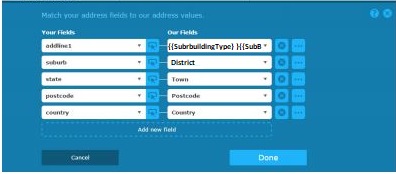
When mapping fields for New Zealand Addresses you will need type the following into the ‘Our Fields’ cell:

Addressline 1 = {{SubBuildingType} }{{SubBuilding}, }{StreetAddress}
Suburb = District (Select from the drop down)
City = Town(Select from the drop down)
Postcode = Postcode(Select from the drop down)

Express Capture when using Demandware

When using the ExpressCapture (EC) in a website that uses Google Tag Manager (GTM) and Demandware there are extra steps required to make sure all the fields are mapped correctly.

The issue is that the drop-down fields used by Demandware uses javascript to display/store the state value in their address forms making it impossible for the standard EC setup to work correctly.

When mapping your fields for ExpressCapture the state field should be “dwfrm_singleshipping_shippingAddress_addressFields_states_state” and it should be matched to ‘County’.

Below is the tag code required. The same code can be used for the billing section by just changing the field names used.

<script type="text/javascript" src="https://expresscapture.datatoolscloud.net.au/js/expresscapture-2.30.min.js?key=BH97-HA71-UB13-YP52"></script>
<link rel="stylesheet" type="text/css" href="https://expresscapture.datatoolscloud.net.au/css/expresscapture-2.30.min.css?key=BH97-HA71-UB13-YP52">
<script>
   $(document).ready(function () 
  {
     
	pca.expressCapture.listen('load', function(control)
	{
		control.listen("populate", function (address) 
		{
			if(control.bound("dwfrm_singleshipping_shippingAddress_addressFields_states_state"))
			{
				var changeEvent = document.createEvent("HTMLEvents");
				changeEvent.initEvent("change", true, true);
              document.getElementById("dwfrm_singleshipping_shippingAddress_addressFields_states_state").dispatchEvent(changeEvent);
	
			};
		});
	});
	});
</script>

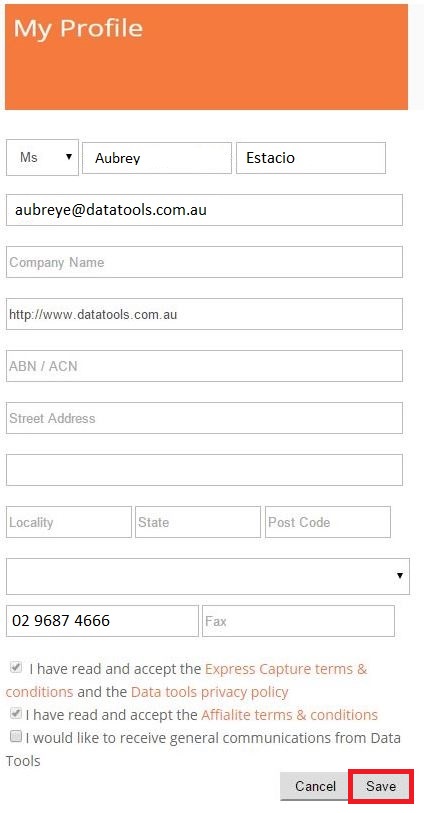
Update My Profile Details in Express Capture

Update My Profile Details in Express Capture

  1. Click on the “My Account” button on the Kleber website.
  2. Then click onto the “My Profile” icon, if you are not login please enter your username and password.


3. When you are in the “My Profile” page, update the details you wish to change.

4. Then click SAVE.

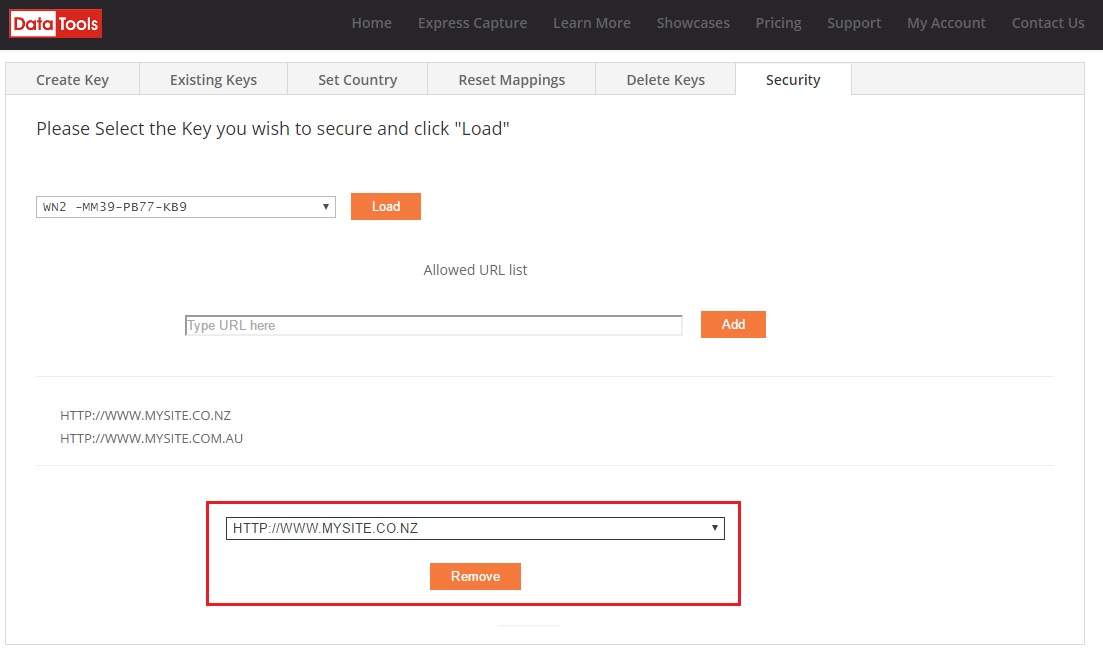
How to remove a secured URL for your Express Capture Key

If you ever need to remove a URL for an Express Capture Key, please do the following.

  1. Log in to My Account using your email and password
  2. Click on Setup Express Capture
     
  3. Click on Security Select the key from the top drop down list you wish to remove the URL from and press LOAD. If that Key already has URLs attached to it – they will appear below. If not – the table will remain blank.
  4. Go down to the Drop down window underneath the listed URLs. Select the URL you wish to remove and click on the Remove button. Repeat for all URL’s you wish to remove.


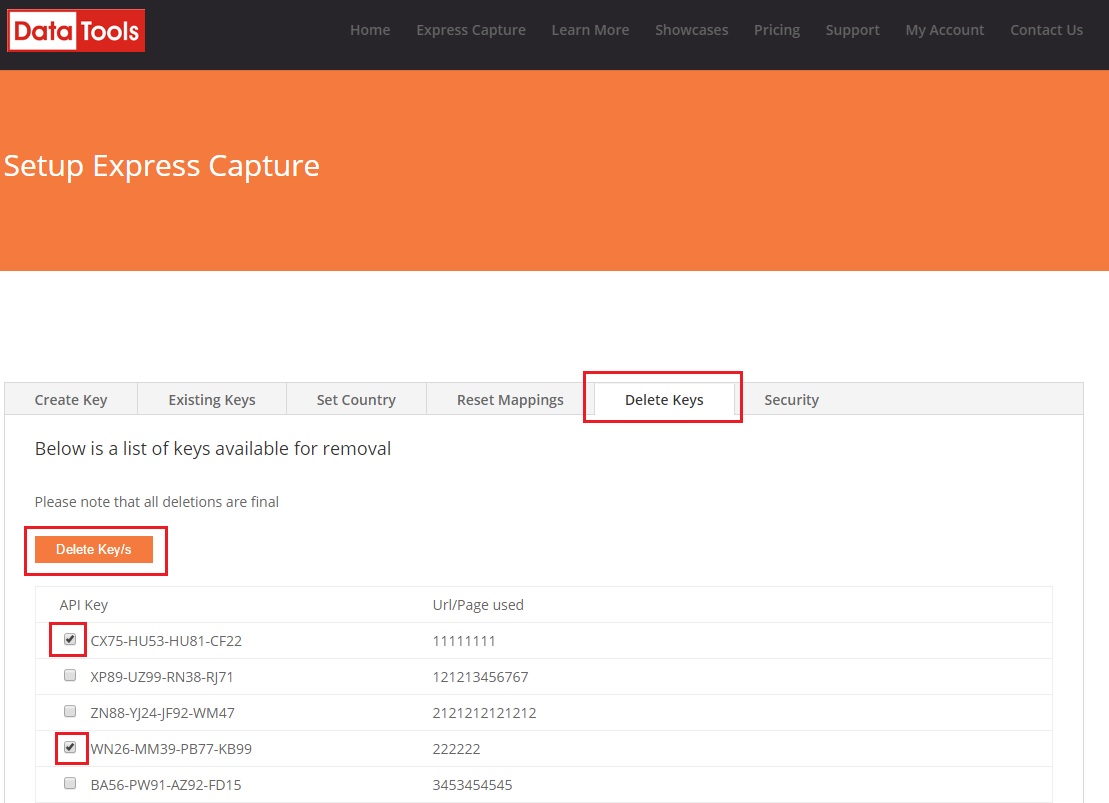
How to delete your existing Express Capture Keys

If you need to work out which Express Capture Key applies to which URL and/or Scripts, please do the following:

  1. Log in to My Account using your email and password
  2. Click on Setup Express Capture


  3. IF YOU ARE CERTAIN AS TO WHICH KEY TO DELETE – click on Delete Keys tab and select the key or keys you wish to delete by checking the little box beside it and then press the Delete Key/s button. 

    NOTE: ALL deletions are final.

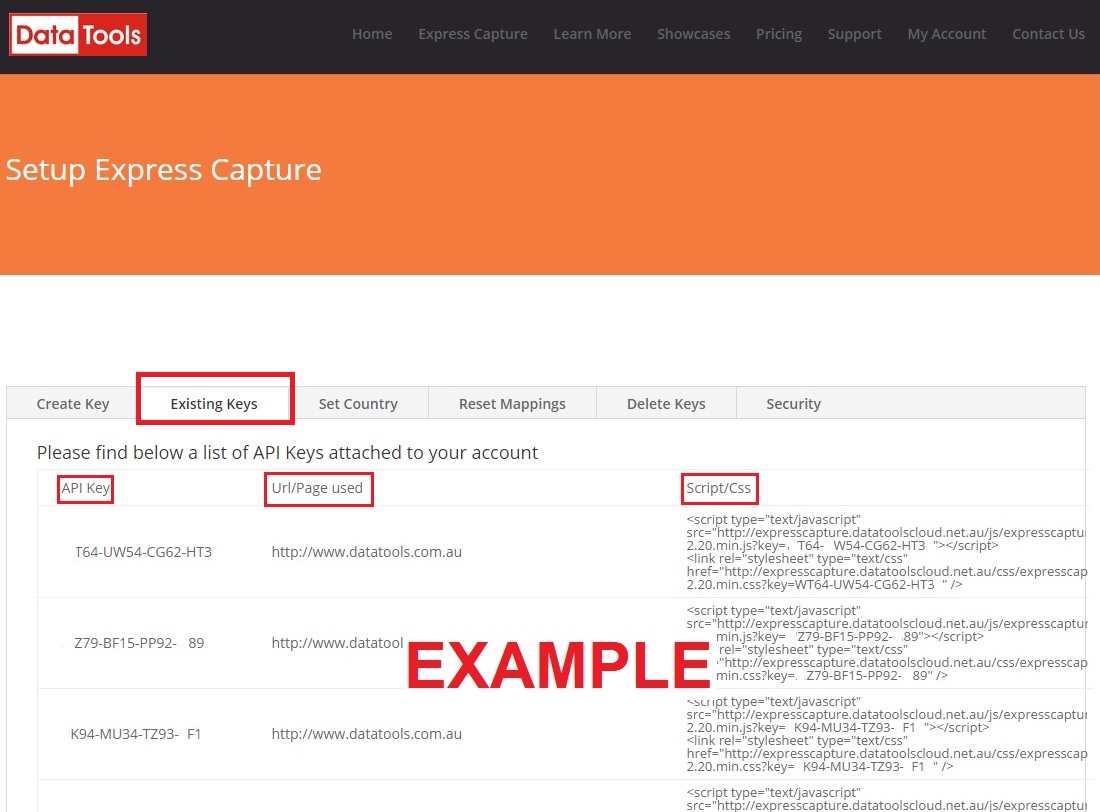
  4. IF YOU ARE UNCERTAIN AS TO WHICH KEY TO DELETE – Click on Existing Keys tab to view the Key, and it’s associated URL/Page and the Script/CSS. Work out which key/s you need and then go to Step 3 above to delete.


How to view your existing Express Capture Keys, URLs & Scripts

If you need to work out which Express Capture Key applies to which URL and/or Scripts, please do the following:

  1. Log in to My Account using your email and password
  2. Click on Setup Express Capture
  3. Click on Existing Keys tab. Here you can see all the Express Capture API Keys you have created, the URL/Page it is used on and the Script/CSS that applies to that.

Express Capture Predict for Dynamics CRM

The first thing you need to do is import the Solution into your Dynamics Org

  1. Download the ExpressCapture_Latest_manages.zip developed by PCA.
  2. Go to Settings > Solutions > Import and select the ExpressCapture_Latest_managed.zip file.
  3. Click Next, and Publish All Customizations.

Include the Javascript libraries in the relevant entity

  1. Create a new instance of the entity you wish to enable Capture+ in (e.g. for the Account entity, select Sales > Accounts > New).
  2. Click Form Form Properties.
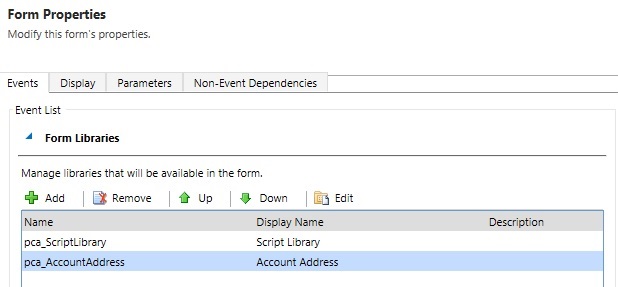
  3. On the Events tab, under Form Libraries, click Add.
  4. Select pca_ScriptLibrary, click OK– this is the generic JavaScript library for the address lookup, and needs to be at the top of the list of libraries.
  5. Click Add a second time, this time selecting the entity-specific library e.g. for the Account entity, the library is pca_AccountAddress, for Contact the library is pca_ContactAddress, etc. These libraries contain the field mappings for the form, only one entity-specific library need be included for a given entity.
  6. Click OK, there should now be two JavaScript libraries prefixed pca_in the list.
Add an event handler to the form’s OnLoad event
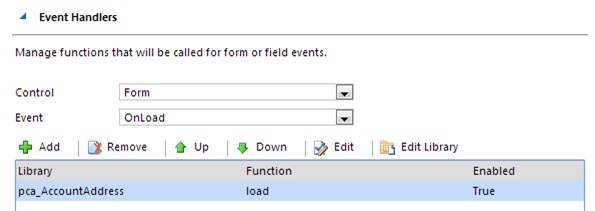
  1. Still on the Events tab, under Event Handlers, set Control to Form and Event to OnLoad, and click Add.
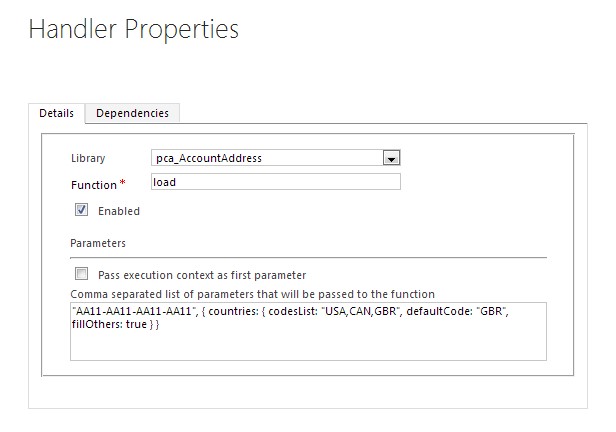
  2. On the Details tab, set Library to pca_[EntityName]Address (e.g. pca_AccountAddress for the Account entity, etc.), and Function to load.
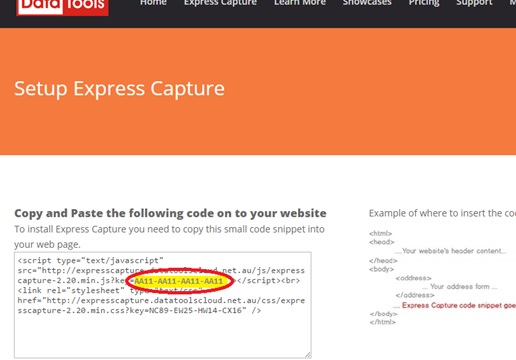
  3. Under Parameters, enter your license key in the following format, including the double quotes: “AA11-AA11-AA11-AA11”. Get your account key by clicking on Create Key at http://expresscapture.datatools.com.au/setup-express-capture/
  4. A second optional parameter can be added to set advanced options. It can be used to order and filter the countries that appear in the list, as well as the default selection by providing ISO 3-char country codes.
  5. If the options parameter is added, the format should be the following: “AA11-AA11-AA11-AA11″,{countries:{codeList:”AUS,NZL”,defaultCode:”AUS”,fillOthers: true}}
  6. The Form Properties dialogue should now contain 2 JavaScript libraries, and 1 event handler.
  7. Click OKOK > Save > Publish

Test the newly set up Express Capture control

  1. Create a new instance of the entity.
  2. Start searching for any address element in any of the address fields.
  3. The Express Capture control should register every keystroke and present you with an updating list, selecting an address from this list should populate the data back into the form.

The solution is now fully installed and ready to use within the standard Dynamics CRM entities. Remember, if you have any problems we’re here to help, support@datatools.com.au
How to reset your field mappings in Express Capture

If you have already set up Express Capture but need to remap your webform’s fields to the Express Capture fields again (For instance you have updated your form and the input fields have changed) – please do the following.

  1. Log in to My Account using your email and password
  2. Click on Setup Express Capture

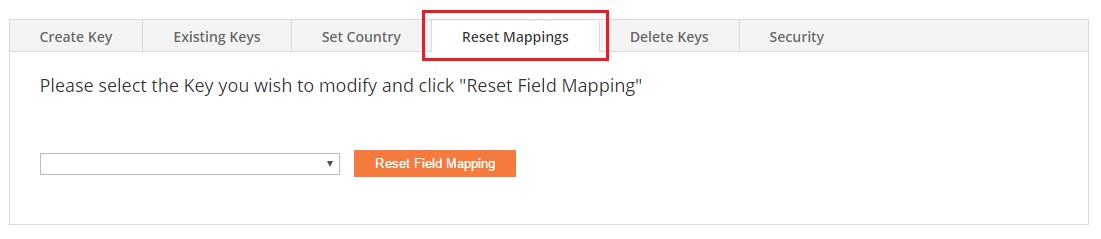
  3. Click on the Reset Mappings tab
  4. From the drop down box pick the key that relates to the page you want to adjust.

    NOTE: If you are unsure which key to use – please go to the Existing Key tab to see what key is on what URL. Note down the one you want to change and return to Reset Mappings.
  5. Once you’ve selected the Key – click on the Reset Field mapping You will receive a new Verification code. Note down this code.
  6. Go to the page that you want to update, the Express Capture mapping wizard should begin. Enter the new Verification code and remap the fields as required.

Express Capture country list

The countries are ISO standard 2 & 3 character codes.


AW ABW 553 Aruba
AF AFG 4 Afghanistan
AO AGO 24 Angola
AI AIA 660 Anguilla
AX ALA 248 Ã…land Islands
AL ALB 8 Albania
AD AND 20 Andorra
AE ARE 784 United Arab Emirates
AR ARG 32 Argentina
AM ARM 51 Armenia
AS ASM 16 American Samoa
AQ ATA 10 Antarctica
TF ATF 260 French Southern Territories
AG ATG 28 Antigua and Barbuda
AU AUS 36 Australia
AT AUT 40 Austria
AZ AZE 31 Azerbaijan
BI BDI 108 Burundi
BE BEL 56 Belgium
BJ BEN 204 Benin
BQ BES 535 Bonaire, Saint Eustatius and Saba
BF BFA 854 Burkina Faso
BD BGD 50 Bangladesh
BG BGR 100 Bulgaria
BH BHR 48 Bahrain
BS BHS 44 Bahamas
BA BIH 70 Bosnia and Herzegovina
BL BLM 652 Saint Barthélemy
BY BLR 112 Belarus
BZ BLZ 84 Belize
BM BMU 60 Bermuda
BO BOL 68 Bolivia, Plurinational State Of
BR BRA 76 Brazil
BB BRB 52 Barbados
BN BRN 96 Brunei Darussalam
BT BTN 64 Bhutan
BV BVT 74 Bouvet Island
BW BWA 72 Botswana
CF CAF 140 Central African Republic
CA CAN 124 Canada
CC CCK 166 Cocos (Keeling) Islands
CH CHE 756 Switzerland
CL CHL 152 Chile
CN CHN 156 China
CI CIV 384 Côte D’ivoire
CM CMR 120 Cameroon
CD COD 180 Congo, the Democratic Republic of the
CG COG 178 Congo
CK COK 184 Cook Islands
CO COL 170 Colombia
KM COM 174 Comoros
CV CPV 132 Cape Verde
CR CRI 188 Costa Rica
CU CUB 192 Cuba
CW CUW 531 Curaçao
CX CXR 162 Christmas Island
KY CYM 136 Cayman Islands
CY CYP 196 Cyprus
CZ CZE 203 Czech Republic
DE DEU 276 Germany
DJ DJI 262 Djibouti
DM DMA 212 Dominica
DK DNK 208 Denmark
DO DOM 214 Dominican Republic
DZ DZA 12 Algeria
EC ECU 218 Ecuador
EG EGY 818 Egypt
ER ERI 232 Eritrea
EH ESH 732 Western Sahara
ES ESP 724 Spain
EE EST 233 Estonia
ET ETH 231 Ethiopia
FI FIN 246 Finland
FJ FJI 242 Fiji
FK FLK 238 Falkland Islands (Malvinas)
FR FRA 250 France
FO FRO 234 Faroe Islands
FM FSM 583 Micronesia, Federated States of
GA GAB 266 Gabon
GB GBR 826 United Kingdom
GE GEO 268 Georgia
GG GGY 831 Guernsey
GH GHA 288 Ghana
GI GIB 292 Gibraltar
GN GIN 324 Guinea
GP GLP 312 Guadeloupe
GM GMB 270 Gambia
GW GNB 624 Guinea-Bissau
GQ GNQ 226 Equatorial Guinea
GR GRC 300 Greece
GD GRD 308 Grenada
GL GRL 304 Greenland
GT GTM 320 Guatemala
GF GUF 254 French Guiana
GU GUM 316 Guam
GY GUY 328 Guyana
HK HKG 344 Hong Kong
HM HMD 334 Heard Island and McDonald Islands
HN HND 340 Honduras
HR HRV 191 Croatia
HT HTI 332 Haiti
HU HUN 348 Hungary
ID IDN 360 Indonesia
IM IMN 833 Isle of Man
IN IND 356 India
IO IOT 86 British Indian Ocean Territory
IE IRL 372 Ireland
IR IRN 364 Iran, Islamic Republic Of
IQ IRQ 368 Iraq
IS ISL 352 Iceland
IL ISR 376 Israel
IT ITA 380 Italy
JM JAM 388 Jamaica
JE JEY 832 Jersey
JO JOR 400 Jordan
JP JPN 392 Japan
KZ KAZ 398 Kazakhstan
KE KEN 404 Kenya
KG KGZ 417 Kyrgyzstan
KH KHM 116 Cambodia
KI KIR 296 Kiribati
KN KNA 659 Saint Kitts and Nevis
KR KOR 410 Korea, Republic of
KW KWT 414 Kuwait
LA LAO 418 Lao people’s Democratic Republic
LB LBN 422 Lebanon
LR LBR 430 Liberia
LY LBY 434 Libya
LC LCA 662 Saint Lucia
LI LIE 438 Liechtenstein
LK LKA 144 Sri Lanka
LS LSO 426 Lesotho
LT LTU 440 Lithuania
LU LUX 442 Luxembourg
LV LVA 428 Latvia
MO MAC 446 Macao
MF MAF 663 Saint Martin (French part)
MA MAR 504 Morocco
MC MCO 492 Monaco
MD MDA 498 Moldova, Republic of
MG MDG 450 Madagascar
MV MDV 462 Maldives
MX MEX 484 Mexico
MH MHL 485 Marshall Islands
MK MKD 807 Macedonia, the Former Yugoslav Republic of
ML MLI 466 Mali
MT MLT 470 Malta
MM MMR 104 Myanmar
ME MNE 499 Montenegro
MN MNG 496 Mongolia
MP MNP 580 Northern Mariana Islands
MZ MOZ 508 Mozambique
MR MRT 478 Mauritania
MS MSR 500 Montserrat
MQ MTQ 474 Martinique
MU MUS 480 Mauritius
MW MWI 454 Malawi
MY MYS 458 Malaysia
YT MYT 175 Mayotte
NA NAM 516 Namibia
NC NCL 540 New Caledonia
NE NER 562 Niger
NF NFK 574 Norfolk Island
NG NGA 566 Nigeria
NI NIC 558 Nicaragua
NU NIU 570 Niue
NL NLD 528 Netherlands
NO NOR 578 Norway
NP NPL 524 Nepal
NR NRU 520 Nauru
NZ NZL 554 New Zealand
OM OMN 512 Oman
PK PAK 586 Pakistan
PA PAN 591 Panama
PN PCN 612 Pitcairn
PE PER 604 Peru
PH PHL 608 Philippines
PW PLW 585 Palau
PG PNG 598 Papua New Guinea
PL POL 616 Poland
PR PRI 630 Puerto Rico
KP PRK 408 Korea, Democratic People’s Republic of
PT PRT 620 Portugal
PY PRY 600 Paraguay
PS PSE 275 Palestine, State of
PF PYF 258 French Polynesia
QA QAT 634 Qatar
RE REU 638 Réunion
RO ROU 642 Romania
RU RUS 643 Russian Federation
RW RWA 646 Rwanda
SA SAU 682 Saudi Arabia
SD SDN 729 Sudan
SN SEN 686 Senegal
SG SGP 702 Singapore
GS SGS 239 South Georgia and the South Sandwich Islands
SH SHN 654 Saint Helena, Ascension and Tristan da Cunha
SJ SJM 744 Svalbard and Jan Mayen
SB SLB 90 Solomon Islands
SL SLE 694 Sierra Leone
SV SLV 222 El Salvador
SM SMR 674 San Marino
SO SOM 706 Somalia
PM SPM 666 Saint Pierre and Miquelon
RS SRB 688 Serbia
SS SSD 728 South Sudan
ST STP 678 Sao Tome and Principe
SR SUR 740 Suriname
SK SVK 703 Slovakia
SI SVN 705 Slovenia
SE SWE 752 Sweden
SZ SWZ 748 Swaziland
SX SXM 534 Sint Maarten (Dutch part)
SC SYC 690 Seychelles
SY SYR 760 Syrian Arab Republic
TC TCA 796 Turks and Caicos Islands
TD TCD 148 Chad
TG TGO 768 Togo
TH THA 764 Thailand
TJ TJK 762 Tajikistan
TK TKL 772 Tokelau
TM TKM 795 Turkmenistan
TL TLS 626 Timor-Leste
TO TON 776 Tonga
TT TTO 780 Trinidad and Tobago
TN TUN 788 Tunisia
TR TUR 792 Turkey
TV TUV 798 Tuvalu
TW TWN 158 Taiwan, Province Of China
TZ TZA 834 Tanzania, United Republic Of
UG UGA 800 Uganda
UA UKR 804 Ukraine
UM UMI 581 United States Minor Outlying Islands
UY URY 858 Uruguay
US USA 840 United States
UZ UZB 860 Uzbekistan
VA VAT 336 Holy See (Vatican City State)
VC VCT 670 Saint Vincent and the Grenadines
VE VEN 862 Venezuela, Bolivarian Republic Of
VG VGB 92 Virgin Islands, British
VI VIR 850 Virgin Islands, U.S.
VN VNM 704 Viet Nam
VU VUT 548 Vanuatu
WF WLF 876 Wallis and Futuna
WS WSM 882 Samoa
XK XKX 0 Kosovo
YE YEM 887 Yemen
ZA ZAF 710 South Africa
ZM ZMB 894 Zambia
ZW ZWE 716 Zimbabwe


How to change default country?

How to change default country?


The country field auto selects the country that the users IP resides in.


However – should you wish to always set a default country regardless of where the users IP resides – please do the following.


Please note: this functionality will only work for Express Capture Keys created after 11/11/2015. If you have an Express Capture page created before this you will need to go to ‘Create a new Key’ tab shown at Step 3, enter the URL or a name for the key, grab the new code snippet and verification code & place into your existing page mapping the fields again. Then you can complete the steps below to amend the list of countries Express Capture will show.


  1. Log into your My Account
  2. Go to Setup Express Capture
  3. Click on the tab “Add/Remove Country
  4. Select which Express Capture Key you would like to limit the countries of from the drop down list and then click on the Load (Note: if you are uncertain as to which key is for which page – please click on the Existing API Keys to assist you)   
  5. At Default Country – select the country you would like to default to from the drop down list and Save.

Express Capture Account Balance & Usage

Account Balance & Usage

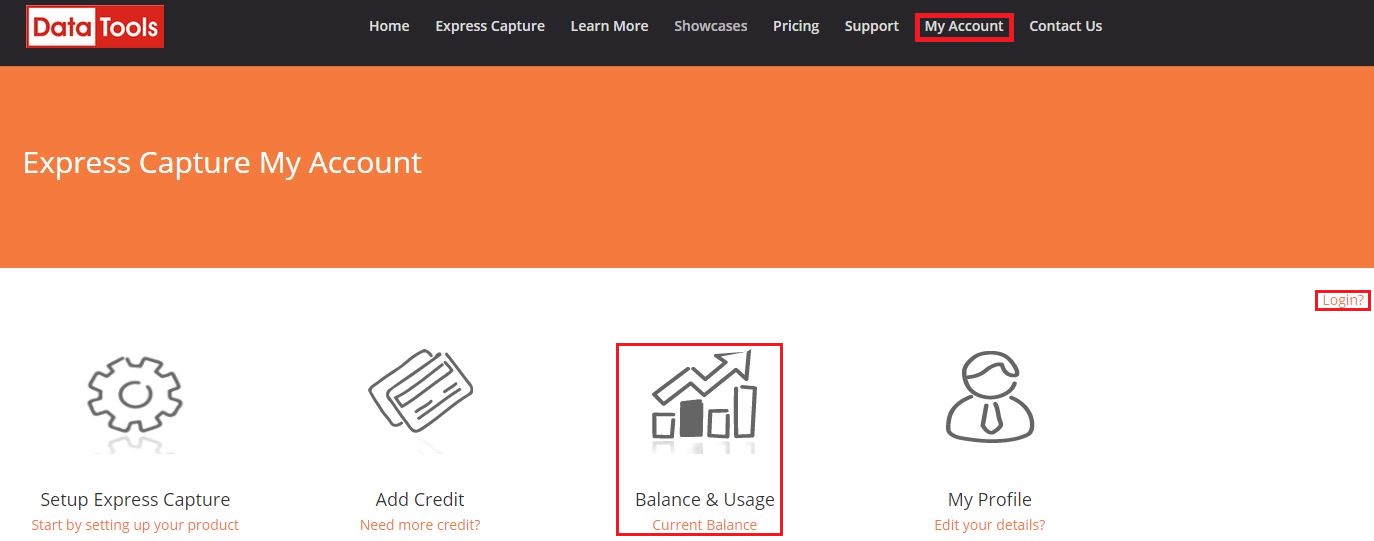
    1. On Express Capture homepage, log in your account
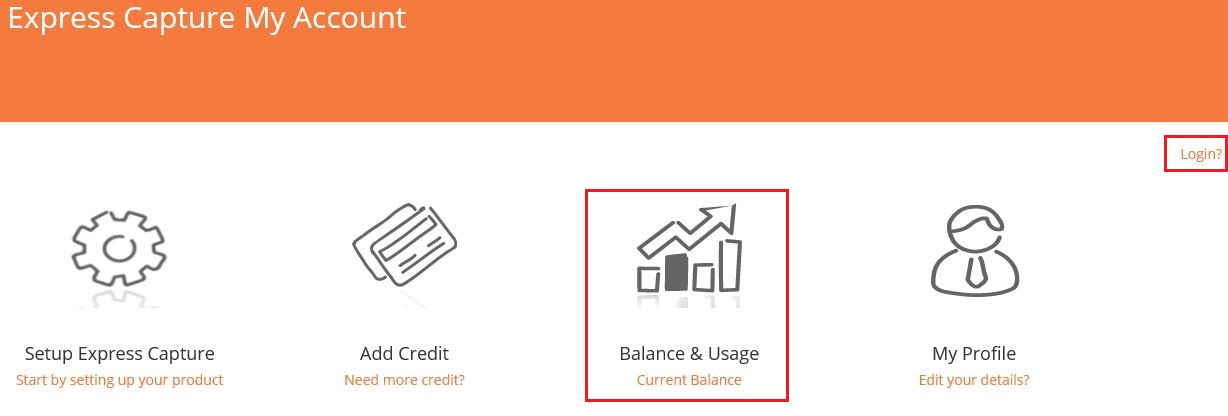
    2. Click on “My Account” tab.
    3. Next, click on “Balance & Usage”

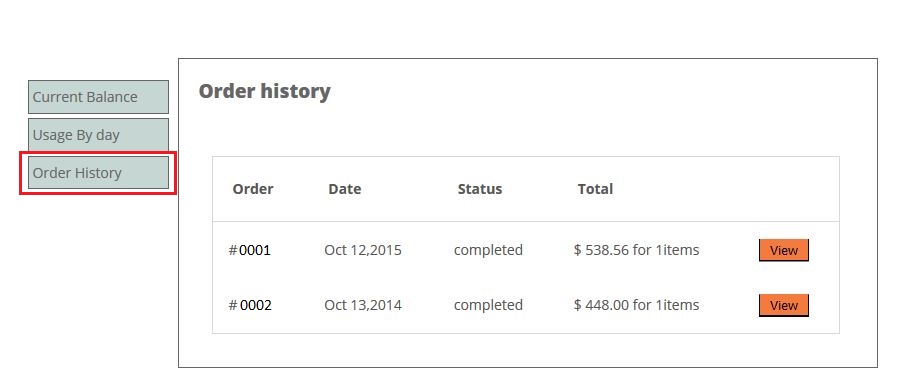
Balance & Usage page allows you to see your Credit Balance, Usage by Day and Order History.


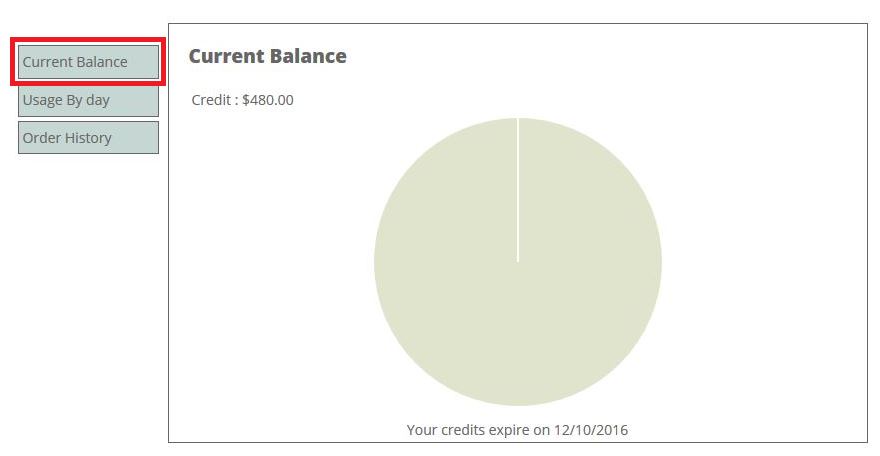
Credit Balance

This page allows you to see the credit balance available to you and when it expires.

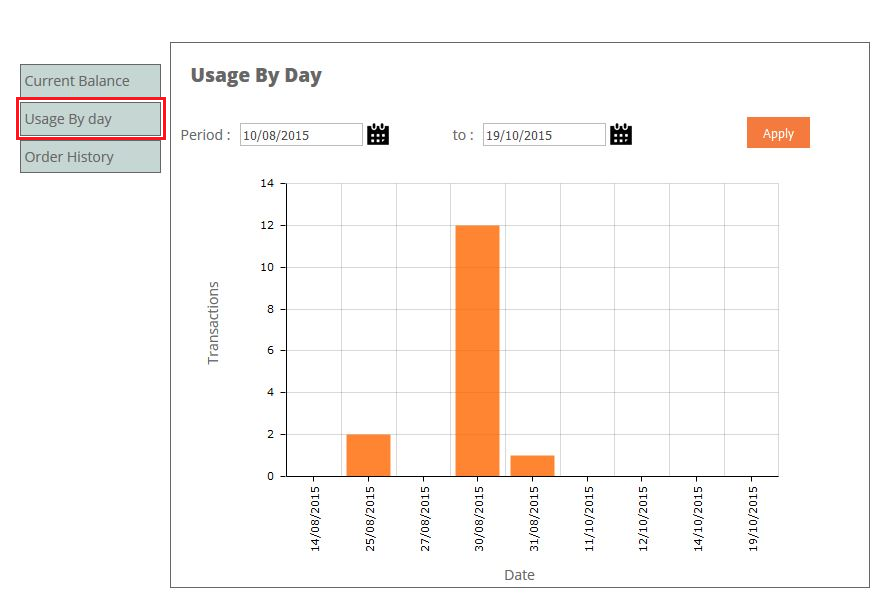
Usage By Day

The transaction graph shows your Express Capture account usage for a selected time period.


Order History

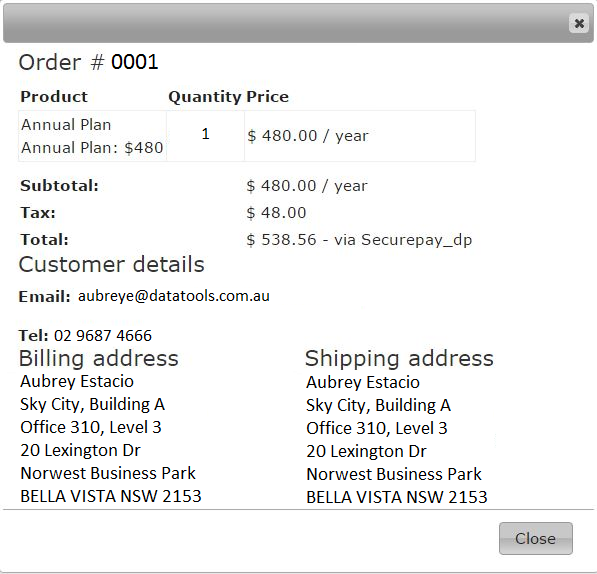
 This page allows you to view details of your order.

You can view further details of your order if you click on “View”.


How to Secure your Express Capture Keys to certain URLs

How to Secure your Express Capture Keys to certain URLs

DataTools strongly recommends that you restrict your Express Capture service to the URLs that you plan to use the service with.

To secure your code – please do the following:

  1. Log in to My Account using your email and password
  2. Click on Setup Express Capture
  3. Click on Security Select the key from the top drop down list you wish to secure and press LOAD. If that Key already has URLs attached to it – they will appear below. If not – the table will remain blank.(If you are uncertain as to which key to use – visit the Existing Keys tab first to view all existing keys and their details)
  4. At the Allowed URL List box – type in the full URLs you would like to secure this code to (include http etc.) You can include all combinations by putting a comma in between each URL. Then click the Add button.The list of URLs will appear in the table below it.

Your code is now restricted to only working on those URLs.

How to Add/Remove countries from the list in Express Capture.

Please note: this functionality will only work for Express Capture Keys created after 11/11/2015. If you have an Express Capture page created before this you will need to go to ‘Create a new Key’ tab shown at Step 3, enter the URL or a name for the key, grab the new code snippet and verification code & place into your existing page mapping the fields again. Then you can complete the steps below to amend the list of countries Express Capture will show.

  1. Log into your My Account
  2. Go to Setup Express Capture
  3. Click on the tab “Add/Remove Country
  4. Select which Express Capture Key you would like to limit the countries of from the drop down list and then click on the Load (Note: if you are uncertain as to which key is for which page – please click on the Existing API Keys to assist you)

5. Make the changes required and click Save. Changes you can make include –

  1. Set a default country by selecting it from the list
  2. Set a default language
  3. Set whether the default country is determined by the country the IP is in or by what you set at Default country. ‘True’ means the user will automatically be set to whatever country their IP address is in. ‘False’ means it will always default to what you select here.
  4. Set which countries data you require or only want to access (for example  – if you only want to see Australia and New Zealand data you tick on only those two countries)

Field Mappings in Express Capture

When you install Express Capture into your website it will first attempt to automatically map its address fields to the fields you have on your website and then ask you to test it by entering an address.

Should you find that it is missing a field or hasn’t mapped them correctly – click on the No button and you will be able to manually map the fields.

At the next screen you will be asked to confirm the address fields that are contained on your website. Click on the Pick new fields button beside the set of address fields you want to change

You will then be asked to map (line up) your address fields listed on the left hand side to the Express Capture address fields on the right hand side. You will need to map each field.

First click on the field from your website on the left hand side and then select one from Express Capture fields on the right hand side. Click on Add new field to add the next field in and repeat.

Below are a list of the fields within Express Capture and what they would normally equate to. This will assist you in manually mapping the fields correctly.


How to setup Express Capture

To add Express Capture into your website – follow these steps:

1. Click on “Start Your Free Trial” or Register via My Account. You will be asked to register and fill in a few basic contact questions to create an account.

2. Once the account is created – click on the Setup Express Capture image in My Account.

3. Go to the Create Key tab and enter the page URL you will use for the Express Capture. Then click Create Key button

Your Express Capture code snippet and Verification Code will then be created.

4. COPY the Express Capture code snippet in the top box by clicking on the Copy button.

5. Access the html of the website you want to add Express Capture into and PASTE it at the bottom of the page. (Click on these links to see how to add Express Capture via Google Tag Manager. Magento or WooCommerce.)

6. Refresh your web page in a web browser. Express Capture will appear at the bottom of the screen and ask you to add in your Verification Code. Enter it and click the ENTER button.

7. Express Capture will then take a moment to try to auto match your address fields to the ones in Express Capture.

When it is done it will show this message highlighted below:

TO TEST IF EXPRESS CAPTURE IS WORKING AS EXPECTED – Go to your search field in your web page and start typing in an address. You should see a little drop down box appear and addresses start to display as you type. Once you find the address you need, select it and watch to see if it populates your address fields.

If it DOES – Hit the YES button.

You will have then successfully installed Express Capture!
You don’t have any more steps to follow. 

If it DOESN’T – hit the NO button to manually match up the fields and continue on from Step 8.

8. If you have hit NO – this screen will appear:

Express Capture will try to identify the address area in the coloured box. If you click on the  button it will show you what it has already auto-matched and you can make changes as required by using the drop down arrows to make selections.

However if you want to start a manual match from scratch – click on Pick New Fields button.

9. Express Capture will then ask you to match your fields to our fields as shown below.

Click on the down arrows to make the selections in both Your Fields and Our Fields. Click on the ‘Add new Field’ to add another field to the list and repeat until all fields are matched.

10. Once you have matched all the fields, click on the ‘Done’ button.

See example below. (Note: Your field names etc may be different to those shown)

It will again ask you to check if it is working by entering an address into the Search field (as for Step 7 above). Check it and see if the other address fields now populate as expected.

If it DOESN’T – Hit NO and repeat steps 8-10 again.

If it DOES – hit YES. It will then show you this screen to say you have been successful. Hit Close to finish.

Note – If you want Express Capture on another page follow step 3 to 10 again.

Australian Address Lists

States